Guide to Migrating Between Password Managers Without Lockouts
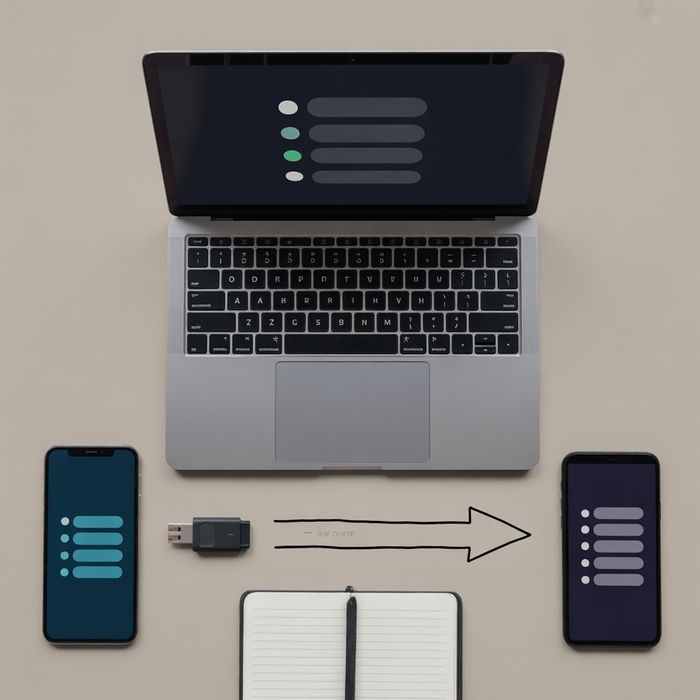
Password managers have become a central part of how many people handle online accounts. Tools such as LastPass, 1Password, Bitwarden, and Dashlane can hold dozens or hundreds of logins in one encrypted place. When someone moves from one manager to another, they are essentially relocating the keys to their digital life. With a plan, that change can feel manageable. Without one, it can lead to missing entries, confusing duplicates, or temporary lockouts at exactly the wrong moment.
This guide walks through how password manager data is structured, how exports and imports work, and how to plan a staged migration that keeps access to important accounts throughout the process.
Background: How Password Managers Store Your Data
Password managers all aim to do similar things, but they often organize information in slightly different ways. Common items include:
- Website and app logins
- Secure notes
- Payment cards and bank details
- Identity profiles (addresses, ID numbers, contact info)
- Shared vaults or folders for families and teams
One tool might store everything in a single vault with tags, while another separates data into multiple vaults. Export formats can range from simple CSV files to encrypted backups that only the original product can read.
Because of these differences:
- A direct one step transfer may not copy every detail perfectly.
- Certain data types, such as shared items or custom fields, might need extra attention.
- Some structure, such as folder names or icons, may not migrate at all.
Most password managers provide export options in account or settings menus and import options on the destination side. Exports are often unencrypted once they are on the device, even if they came from an encrypted vault. For that reason, many people treat the export file as sensitive data while it exists, keep it only as long as needed, and delete it securely once the new manager is confirmed to work.
Preparation: Treat Migration as a Project
Before pressing any export button, it helps to do some preparation in the current manager:
Identify critical accounts Mark or star key logins, such as email, cloud storage, banking, and work tools. These accounts are often needed to reset others, so they should be easy to find and test after migration.
Clean up obvious clutter Remove very old, unused, or clearly duplicate entries. This keeps the export file smaller and makes it easier to spot what might be missing later.
Check recovery details Confirm that primary email accounts, phone numbers, and backup methods for important services are up to date. If something goes wrong, these recovery paths may be needed.
Review shared items If family members or colleagues use shared vaults, list which items are shared and who depends on them. Group migrations often require more coordination than solo moves.
Treating the move as a structured task rather than a quick setting change usually leads to fewer surprises.
Exporting Safely from the Old Manager
Once the vault is in reasonable shape, the next step is to export:
Find the export function It is typically located under account settings, tools, or security. The manager may prompt for the master password before exporting.
Choose the format recommended by the new manager Some password managers document which formats they handle best, such as CSV or a specific competitor export type.
Store the file temporarily in a private location Since exports are frequently unencrypted, a local folder with limited access is usually safer than a shared cloud folder.
Keep the file only as long as needed After confirming that the new manager has imported the data correctly, many users securely delete the export, including any copies in the recycle bin or temporary folders.
During this phase, it can be helpful to avoid making big changes to passwords or account structures until the import is complete. That way, the export reflects a stable snapshot of the vault.
Importing to the New Manager and Checking Results
On the destination side, modern password managers increasingly offer import helpers:
- Some recognize exports from major competitors and automatically map columns such as website, username, password, and notes.
- Others provide templates and step by step prompts to assist with manual mapping.
A careful import process often includes:
- Running a first test with a small sample, if possible, to see how the new manager handles fields and folders.
- Performing the full import using the format that best matches the new tool.
- Spot checking important accounts such as email, financial services, and work systems to ensure that usernames, passwords, and notes appear correctly.
If certain items did not import well, they can sometimes be corrected manually or re imported from a smaller, adjusted export file.
Managing Multi Factor Authentication and Recovery
Multi factor authentication (MFA) has become more common across password managers and online services. While it improves security, it also adds complexity to migration.
Points to keep in mind:
Do not disable the old manager too early If MFA codes or recovery details are stored in the current manager, turning it off too soon may make it harder to log back in to services that still rely on it.
Keep backup methods available Recovery codes, secondary authenticators, or extra security keys can provide a fallback if a main device is lost during the move.
Consider transferring authenticator entries carefully Some people choose to re enroll MFA on key accounts while moving to a new manager. Others keep a dedicated authenticator app separate from both old and new password managers. The best pattern often depends on personal preference and risk tolerance.
Because MFA and recovery settings differ between tools and services, it is usually wise to change them gradually rather than all at once.
Running Old and New Managers in Parallel
Many security practitioners recommend a transition period where both the old and new password managers remain available:
- The old manager is kept active but effectively read only for day to day use.
- The new manager is used for logging in and updating passwords.
- If a login fails in the new manager, it can be cross checked against the old vault.
This overlapping period allows users to:
- Confirm that all critical accounts work from the new tool.
- Identify logins that did not import correctly or that may have been missed.
- Gradually update weak or reused passwords while they are being touched anyway.
Once confidence is high that the new manager holds everything important, the old account can be closed following the provider’s recommended process, which may include deleting stored data after export.
Handling Shared Vaults, Families, and Teams
Shared vaults introduce additional considerations:
- Families may need to coordinate when shared items move so that no one loses access halfway through the change.
- Teams and organizations often use admin controlled password managers, where policies and permissions are centrally managed.
Some services provide guidance for group migrations, including:
- Moving shared collections in stages rather than all at once
- Testing access for a smaller pilot group before migrating everyone
- Keeping the old manager available during a defined transition window
Clear communication about timing and expectations can help avoid situations where one person updates an important shared password in the old system while others have already moved to the new one.
Expert Notes: Using Migration as a Security Upgrade
Specialists often suggest viewing migration as an opportunity to improve overall vault hygiene rather than just copying data:
- Remove truly unused accounts that no longer serve a purpose.
- Update weak or repeated passwords while they are being reviewed.
- Standardize naming and tagging so that critical services, such as email providers and cloud storage, are easy to identify.
- Review emergency access options, such as trusted contacts or account recovery features, in the new manager.
Even small improvements at this stage can make the new setup easier to maintain and safer to use over time.
Summary
Moving between password managers is more than a simple software switch. It combines technical tasks, such as exporting and importing data, with planning around recovery, shared access, and everyday workflows. Differences in export formats, import helpers, multi factor authentication, and vault structure all influence how smooth the transition feels.
By preparing the old vault, handling export files carefully, testing the import thoroughly, and keeping both managers available for a short overlap period, many users can reduce the risk of lockouts and missing entries. Treating migration as a chance to clean up old data and strengthen security can help ensure that the new password manager starts life as a cleaner, more organized, and more resilient home for important credentials.
Reviewed by InfoStreamHub Editorial Team - December 2025